
Remote & collaboration
Work on a remote machine
Connect an SSH host and keep execution beside the remote repository and tools.
2 min read Dragent guide
Prepare the host
Use a supported macOS or glibc-based Linux SSH host. Set up SSH authentication, Git, and any agent CLIs or project tools you want to run. The remote runtime supports the published operating systems and architectures; Alpine-style musl hosts are not supported by the current glibc runtime.
Add the machine
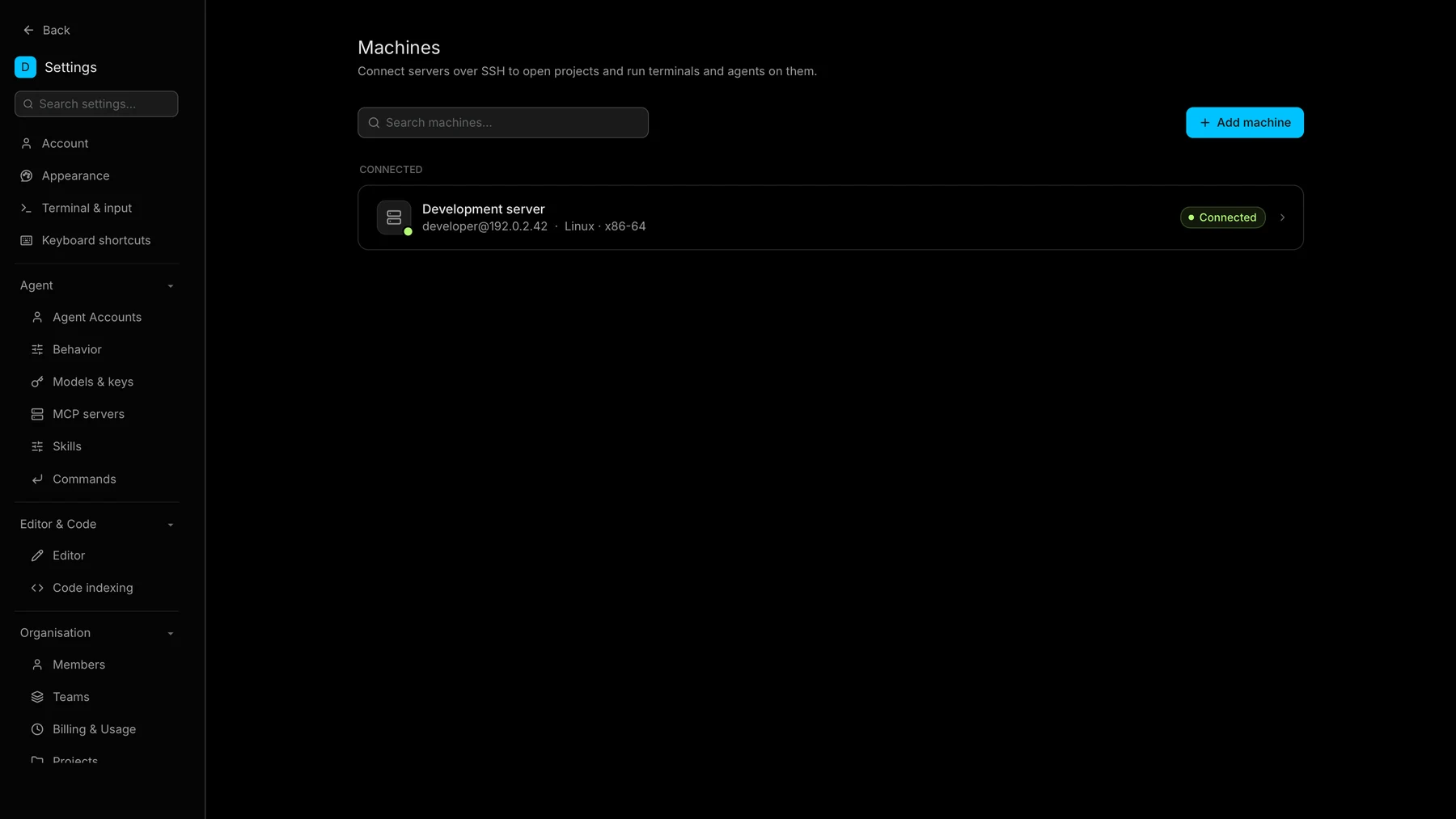
Open Settings → Machines, add the SSH host, and configure its user, port, key, SSH configuration, or jump host as needed. Verify the host fingerprint before trusting a connection.
Open a remote project
Connect the machine and select a project path on that host. The file explorer, terminal, and Git operations act on the remote project. A remote path refers to that machine’s filesystem; it is not a local desktop path.
Install the matching runtime and agents
Dragent provisions a checksum-verified host runtime for supported hosts. The desktop and host must use compatible versions. Authenticate coding agents on the host itself. Local credentials do not automatically sign a remote CLI into the provider.
MCP and connected services
Supported remote agents receive Dragent MCP registration through a context-aware dispatcher. Team operations execute on the remote host. Connected-service requests use your desktop connection; its credentials stay on the desktop, which must remain signed in and connected.
Reconnect and troubleshoot
A transport reconnect can attach to an existing host terminal while the host service remains alive. A host shutdown or service restart is a separate recovery event. Check the machine connection, runtime version, shell, and agent authentication before starting a replacement session.