
Work with agents
Coordinate a team of agents
Give one lead the goal, divide the work, and keep dependencies and decisions visible.
8 min read Dragent guide
When to use a team
Use a team when parts of a task depend on each other: an interface before the code that uses it, implementation before review, or several changes before one round of testing. One lead plans the work as tasks, workers carry them out, and you follow the plan in one place. Use independent workspaces when tasks do not need a shared plan.
Start a team
In workspace creation, turn on coordination, choose the lead agent, and select the additional agents that may contribute. The lead is already part of the team. Describe the outcome you want and how the lead should verify it.
From the command line, the agent that runs the create command leads the team:
dragent team create "Shorten invite links" --agents claude,codex
dragent tasks add "Shorten the links" --prompt "…" --owns app/src/invites/
dragent tasks add "Review the invite change" --review t1 --prompt "…"
dragent tasks add "QA the whole feature" --qa --prompt "…"
dragent tasks start
Read the CLI reference for the full command list, and run dragent team help for the current options.
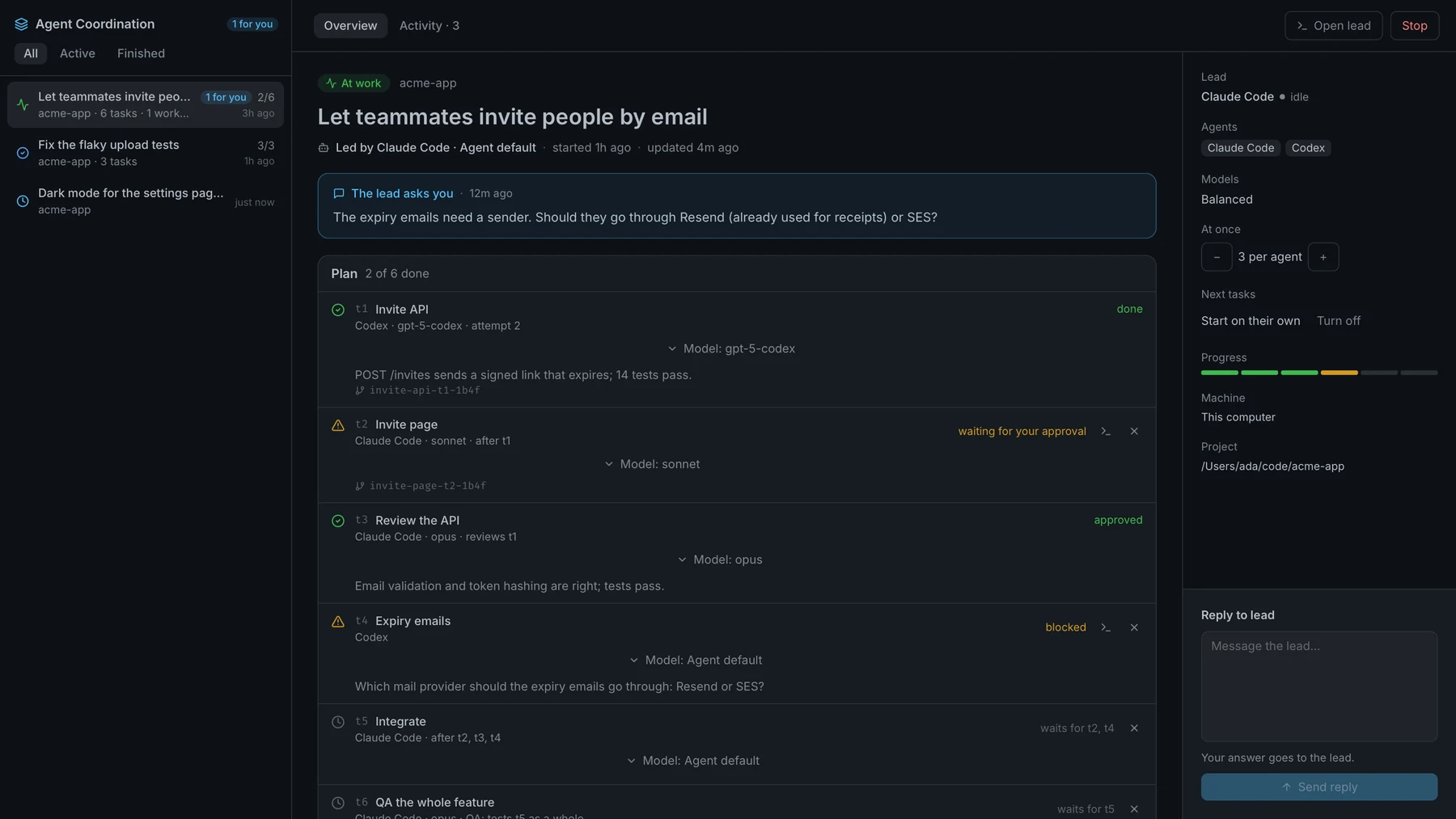
Roles on the team
The lead plans the work as tasks, gives each task to a worker, talks to the workers through the team mailbox, checks every result, and brings finished work into your checkout. The lead does not write the code itself. Workers each write code on their own branch. A reviewer independently reviews one task's result and approves it or asks for changes. A QA pass tests the whole finished feature the way a tester would: it starts the app, walks through every flow you asked for plus the edge cases, checks nothing nearby broke, and runs the full test suite. The work is not done until QA passes.
Reviews and QA passes are tasks too. Add a review with --review t1. Make the QA pass the plan's final task with --qa. When tasks run side by side, test them together once they are all integrated, with --qa --integrated: QA then gets a snapshot of your checkout with everything in it.
How work flows
Each worker starts from a snapshot of your checkout, including your uncommitted changes, on its own branch. Follow-on work carries on in the folder of the work it continues. Other work gets a checkout of its own. Every checkout shows in the sidebar.
Nothing reaches your checkout until the lead brings it in. The lead checks what each worker changed, reruns its checks, and integrates finished work one task at a time, in plan order, as uncommitted changes. Nothing is committed, merged, staged, or pushed automatically. A worker's summary is a claim, not evidence: the lead treats it that way.
Find a coordination in the sidebar
Each coordination gets its own group under its project, named after the request, with how many of its tasks are done. The lead’s workspace comes first, marked with a crown, then one card per task workspace titled with the task it works on. Under the title are the logos of the agents working there, the branch, and its changes; a workspace that handled several tasks lists the others below. Click a card to open its workspace, or an agent’s logo to open that agent’s tab. Click the group’s title to fold it, and use the arrow beside it to open the coordination’s page.
Task statuses
Each task shows one status. The chip beside it uses the words below.
| Status | What it means | What you do |
|---|---|---|
| Pending | Planned. It waits for other tasks (the chip names them, as “waits for …”), or it is ready to start. | Nothing. It starts on its own once what it waits for is done. |
| Starting | Its worker is being set up: checkout and agent. | Wait. |
| Running | A worker is on it. The chip adds detail: “working”, “running”, “idle”, or “waiting for your approval”. | Let it work. Answer if it asks you something. |
| Blocked | Its worker needs a decision, access, or another task first. The reason is shown. | Read the reason and answer it, or fix what is missing. |
| Done | Its worker finished. Read its stage and verdict before treating it as complete. | Check the result. The lead verifies and integrates it. |
| Failed | A real failure: its worker didn't start, its terminal closed, or its agent stopped before finishing. The reason says which. Its checkout keeps the work. | Read its screen, then send it back to start again, or change the plan. |
| Needs decision | Not an error. Its review still asked for changes after three rounds, so it stopped to let someone choose what happens next. The reason lists the open findings, and the work is kept on its branch. | Decide: send it back once more, change the plan, or answer the choices the findings depend on. The lead asks you when they are yours to make. |
| Cancelled | Taken out of the plan. Its worker stopped. | Nothing. |
Stages of finished work
A finished work task also shows how far it got towards your checkout. Each stage builds on the one before it.
| Stage | What it means | What you do |
|---|---|---|
| Done | Finished, with no review yet. | Wait for its review, or review it yourself. |
| Approved | Its review approved it. | Wait for QA and integration. |
| Passed QA | The QA pass tested the feature and approved it. | Wait for integration. |
| In your checkout | Integrated as uncommitted changes in your checkout. | Read the diff, run your checks, then commit when you are ready. |
| Asked for changes | Its review finished but did NOT approve: the work went back to its worker with the findings. QA shows “found problems” instead. | Nothing. The worker tries again and the review looks at the next attempt. |
Reviews and “changes asked”
This is the combination that confuses people: a review task can show done together with asked for changes. That means the reviewer finished, but the reviewed work is NOT approved. The work goes back to its worker with the findings, and nothing that builds on it starts meanwhile. When the worker finishes again, the review runs again on the new attempt. A review waiting for the next attempt shows as pending with “looks again after the fix”.
After three rounds of “asked for changes”, the reviewed task shows needs decision instead. That is not an error: nothing broke, and its work is kept. The reason lists what the review still asks for, and the lead decides: send it back once more, change the plan, or ask you when the findings hang on your choices. QA of the integrated work behaves the same way, except it reports to the lead rather than to one worker: the lead sends the responsible work back, integrates the fix, and QA tests again on its own.
Messages and talking to the lead
Use the reply-to-lead area on the team's page to answer a question or add direction. Your message reaches the lead immediately, even mid-turn, and the lead answers there because you are reading that page. Workers settle what they share directly — an interface shape, a schema — and the lead sees those exchanges. You can inspect a worker's pane when you need the full conversation.
Every message has a kind, shown as a verb: The lead or a worker wrote to, asked, answered, handed off to, or told someone, and a message that needs you is waiting for your decision. From the command line:
dragent msg send lead "Keep the existing public API unchanged."
dragent msg inbox
dragent msg reply 12 "Use the shorter expiry."
Permission prompts
A worker that waits at a permission prompt shows “waiting for your approval”. The lead may answer it inside the task when it is safe: reading or writing in the task's own checkout, running the project's build, tests, or tools, or starting its own development server. Each answer is recorded on the timeline. The lead asks you — with a message that needs you — before anything destructive or irreversible: deleting or overwriting outside the checkout, credentials, pushing, publishing, paying, writing to outside services, or anything it is unsure of. You can also turn off lead-answered prompts for the team; then every prompt waits for you.
Changing the plan
Plans change in place. Workers keep what they have done. Adding agents, editing tasks that have not started, adding new tasks, or moving a task to another agent all keep the team going; only your word adds an agent.
dragent team agents add codex
dragent tasks edit t2 --agent codex
dragent tasks reassign t3 --agent claude --note "Needs the stronger model."
dragent tasks cancel t4
Reassigning moves a task under way to another agent, which carries on in the same checkout with the work so far. Cancelling is only for work nobody needs any more. Never stop the team or start a new one just to change the plan.
Remote machines
On a supported SSH host, the matching headless runtime provides coordination operations. Install and authenticate the required agent CLIs on that host. Use a supported CLI lead remotely; the built-in Dragent lead currently remains local. Connected-service tools depend on the signed-in desktop bridge.
Good habits
Follow the plan, but verify before you trust it. Read each task's diff and its check results before treating it as done. Check the summary of the whole run once everything is integrated and QA has passed. A finished task is one part; the feature is done when every task is integrated and tested together.